
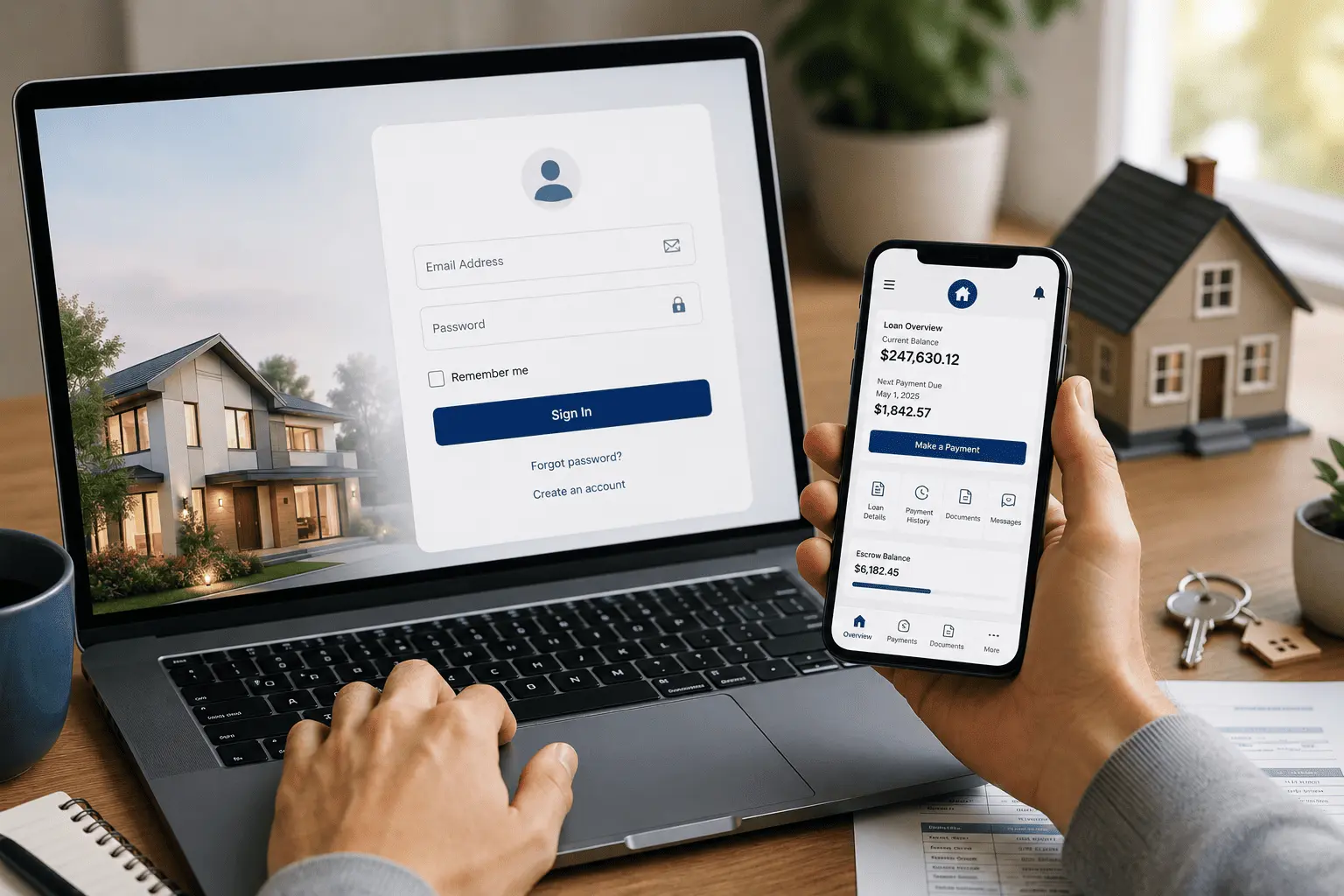
Have you ever tried to log in to your Guild Mortgage account and ended up on the wrong page? Or maybe you signed up, but your loan was not showing on the dashboard and you had no idea why. It happens to a lot of borrowers, and it is more common than you think.
This guide will walk you through everything you need to know about the Guild Mortgage login process. You will learn how to sign in the right way, how to register for the first time, how to set up payments, and how to fix the most common login problems — all in one place.
How to Log In to Your Guild Mortgage Account
Logging in to your Guild Mortgage account is simple once you know the right steps. The portal is available 24 hours a day, seven days a week. You do not need to call anyone or visit a branch to manage your loan.
Step-by-Step Login Process
Here is how to sign in to your account:
- Open your browser and go to myaccount.guildmortgage.com
- Enter your registered email address in the email field
- Type in your password
- Click the “Log In” button
- You will land on your loan summary dashboard
That is it. Once you are in, you can view your balance, make payments, and manage your loan details right away.
New Loan Applicant vs. Existing Borrower — Which Portal?
This is the number one source of confusion for Guild Mortgage customers. There are two separate portals, and they are not the same thing.
- Loan applicants (your loan has not closed yet) — use my.guildmortgage.com
- Existing borrowers (your loan is already active) — use myaccount.guildmortgage.com
- Both portals have different login credentials — do not try to use one for the other
- Guild Mortgage employees access their internal tools through mycircle.guildmortgage.com
If your login is not working, the first thing to check is whether you are on the right portal. Most people who think their account is broken are simply on the wrong page.
How to Register for a Guild Mortgage Account (First-Time Users)
If your loan has just closed and you are setting up your online account for the first time, follow these steps carefully. Most first-time users get stuck at step six — and we will make sure that does not happen to you.
- Go to myaccount.guildmortgage.com
- Click “Create an Account”
- Enter your First Name, Last Name, and Email Address
- Create a password — it must be 8 to 25 characters, include at least one uppercase letter, one lowercase letter, one number, and one special character. It cannot include your name or username
- Verify your account through your email or phone number
- After registration, go to your profile and click “Attach a Loan”
- Enter your 10-digit loan number in the field
- Click “Save Changes”
Your loan will now appear on your dashboard. If you skip step six, your dashboard will be empty — and that is the most common complaint from new users. Your loan number is on your closing documents.
What Can You Do After Logging In?
A lot of borrowers log in just to make a payment and leave. But your Guild Mortgage my account dashboard has a lot more to offer. Knowing what is available can save you time and help you stay on top of your home loan.
H3: Account Dashboard Features
Once you are logged in, here is what you can see and do:
- View your current loan balance and next payment amount
- Check your real-time escrow balance for taxes and insurance
- Download and view your monthly mortgage statements
- Review your full Loan Activity Statement
- Upload documents your loan team has requested
- Access financial hardship assistance options directly
- Update your contact details and communication preferences
Guild Mortgage ranks second among mortgage servicers in the J.D. Power 2025 U.S. Mortgage Servicer Satisfaction Study. A big part of that score comes from how easy the online account makes loan management.
How to Set Up Auto Pay After Login
Auto Pay is one of the best features inside your account. It is free, it drafts from your checking account, and you never have to worry about missing a payment.
- Log in to myaccount.guildmortgage.com
- On your loan page, find the Payments banner
- Click “Set up Auto Pay”
- Enter your checking account and routing number
- Choose your draft date — any day from the 1st through the 16th of the month
- Confirm and save
A few things to know about Auto Pay: if your escrow amount changes, the system adjusts your draft amount automatically. If you use your bank’s bill pay service instead, you must update that amount yourself when it changes. Auto Pay through the portal is always the easier option.
How to Make a One-Time Payment
If you prefer to pay manually each month, that works too. Here is how:
- Log in and click the “Make a Payment” button on your loan page — it is free via ACH
- You can send funds toward your Monthly Payment, Additional Principal, Escrow, or Late Fees
- Same-day payments are processed if you submit before 5:00 PM Pacific Time on a business day
- Payments after 5 PM post the next business day
- Debit card payments are available without login through Repay, but a fee of up to $4.95 applies
Principal-only payments over $10,000 must be sent as certified funds or by wire. For amounts under $10,000, ACH or a personal check works fine.
Guild Mortgage Mobile App Login
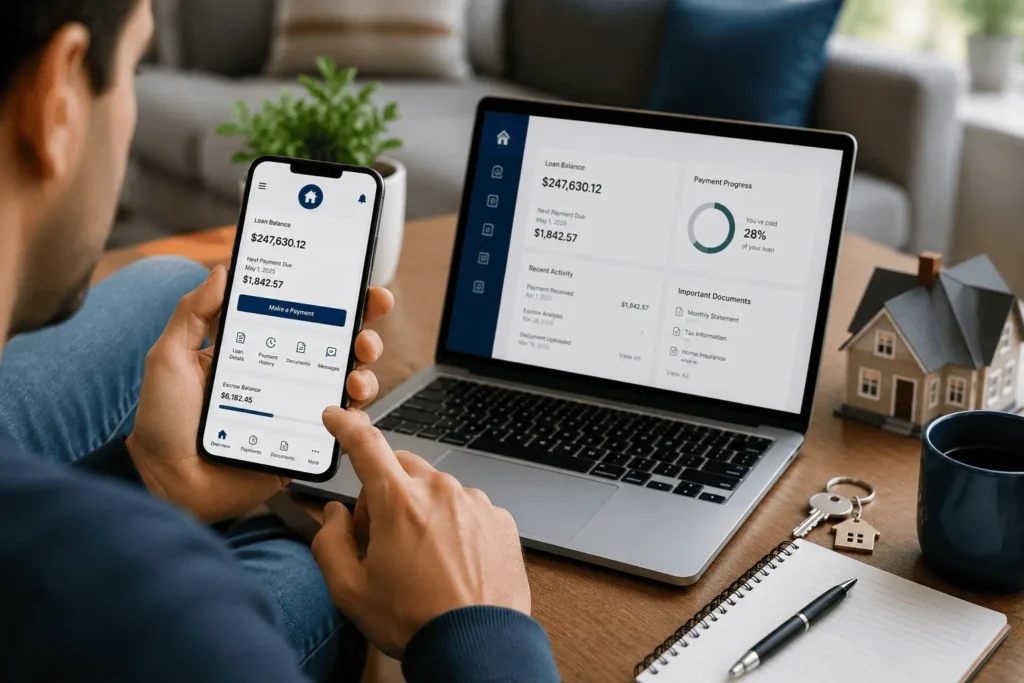
The Guild Mortgage mobile app is a full loan management tool. It is not just a basic payment app — it covers both new loan applications and servicing for existing borrowers in one place.
How to Download the App
- iPhone users: Search “Guild Mortgage” on the Apple App Store. Developer name is Guild Mortgage Company LLC
- Android users: Search “Guild Mortgage” on Google Play
- Use the same email and password
What You Can Do on the App
- View your loan balance and escrow balance in real time
- Make payments and set up AutoPay from your phone
- Upload requested loan documents directly from your camera roll
- Download your pre-approval letter anytime
- Follow your closing checklist step by step
- Use the built-in mortgage payment calculator
- Manage your contact info and notification preferences
The app supports both the mortgage application process and post-close loan servicing. So whether you are still buying or already paying, it has you covered.
App Login Issues?
Some Android users see an error that says “device does not meet security requirements” even when the device is fully updated. This is a known app-side issue and has nothing to do with your login credentials.
If this happens to you, open your mobile browser — it works perfectly as a backup. Check the Google Play Store for any pending app updates.
How to Reset Your Password or Recover Your Email
Forgetting your password or email is not a big deal. Guild Mortgage makes it easy to get back in without calling anyone.
Forgot Password
- Go to the login page at myaccount.guildmortgage.com
- Click “Forgot Password” below the sign-in form
- Enter your registered email address
- Guild sends a secure reset link to your inbox — check your spam folder if you do not see it
- Click the link and create a new password that meets the requirements
Forgot Email
If you cannot remember which email you used to register, you can recover it using your personal details.
- Click “Forgot Email” on the login page
- Enter the last 4 digits of your Social Security Number
- Enter your date of birth
- Click Submit — your registered email will be shown
Never call a third-party number you find on Google for login help. Always use the official Guild Mortgage help center or their direct customer service line.
Common Login Problems and Fixes

| Problem | Fix |
|---|---|
| Wrong password | Click “Forgot Password” and reset via email |
| Account locked after failed attempts | Wait 15 to 30 minutes then try again |
| Forgot registered email | Use SSN last 4 digits + date of birth to recover |
| Loan not showing on dashboard | Go to profile → Attach a Loan → enter 10-digit loan number |
| Mobile app showing security error | Use website on mobile browser as backup |
| Page not loading or freezing | Clear browser cache or open in incognito mode |
| Payment not posting to account | Allow one business day — bill pay checks may take longer |
| Applied for loan but cannot log in | Use my.guildmortgage.com — not the servicing portal |
Guild Mortgage Account Security: How to Keep Your Login Safe
Your mortgage account holds sensitive financial data. Keeping your login secure is just as important as making your payments on time. Guild Mortgage takes security seriously — and so should you.
- Use a strong password that you do not use on any other site
- Never share your login details with anyone, including family members
- Guild Mortgage will never contact you by email to change wire transfer instructions — if you get such an email, it is fraud
- Call right away if you receive a suspicious email about your account or payment
- Turn on two-factor authentication on your personal email account — this stops most account takeover attempts
- Guild itself requires two-step verification on all internal company accounts, including employee Outlook access
Wire fraud is a real risk during home loan transactions. Guild Mortgage has a full guide on their website about how to protect yourself. The safest rule is simple — always verify any payment instruction by phone before sending money.
Guild Mortgage employees in locations like Las Vegas and Longview Texas use the internal MyCircle portal (mycircle.guildmortgage.com) for HR tools including UltiPro payroll and Outlook access. Borrowers do not use this portal — it is for staff only.
Conclusion
You came here because something about your Guild Mortgage login was not working — or you just needed a clear, simple guide to get started. We covered the login steps, the registration process, how to attach your loan, Auto Pay setup, mobile app access, password recovery, and how to fix the most common problems. Everything you need is right here, and the process is easier than most people expect.
Frequently Asked Questions
What Is the Guild Mortgage Login URL?
The official Guild Mortgage login portal for existing borrowers is myaccount.guildmortgage.com. Loan applicants who have not closed yet use my.guildmortgage.com. Both portals are separate and use different login credentials. Always make sure you are on the right portal before entering your email and password.
How Do I Attach My Loan After Registering?
After creating your account, go to your profile and click “Attach a Loan.” Enter your 10-digit loan number and click Save Changes. Your loan will then appear on your dashboard. Your loan number is on your closing documents or Welcome Letter from Guild Mortgage.
Why Is My Loan Not Showing After Login?
If your dashboard is empty after logging in, you have not attached your loan yet. Go to your profile settings and click “Attach a Loan.” Enter your 10-digit loan number and save. This is the most common issue first-time users face right after registration.
How Do I Reset My Guild Mortgage Login Password?
Go to myaccount.guildmortgage.com and click “Forgot Password” below the login form. Enter your registered email address and Guild will send a secure reset link to your inbox. Click the link and create a new password. Check your spam folder if the email does not arrive within a few minutes.
Can I Manage My Guild Mortgage Account From My Phone?
Yes. Download the Guild Mortgage app from the Apple App Store or Google Play. Use the same email and password you use on the desktop portal. The app lets you view your loan balance, make payments, set up AutoPay, and upload documents directly from your phone.

5 Comments